
Setting up the BBMod-Safe
Configure the BBMod Safe plugin on your WooCommerce store
Configuring BBMod Safe is essential for BBM Tools to function properly.
As a WooCommerce store administrator, you'll need to provide the following information:
- FTP connection URL
- FTP credentials
If you do not have this information, ask your web host to provide it to you or create an FTP account on your hosting.
BBModdings can also provide you with dedicated FTP storage.
If you used this system, your login details will have been sent to you by email.
1. Configure settings
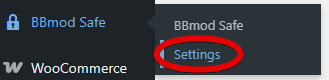
Access Settings from the BBMod Safe menu
The first step is to enter your login information (1).
Perform a connection test (2).
Save your settings (3).
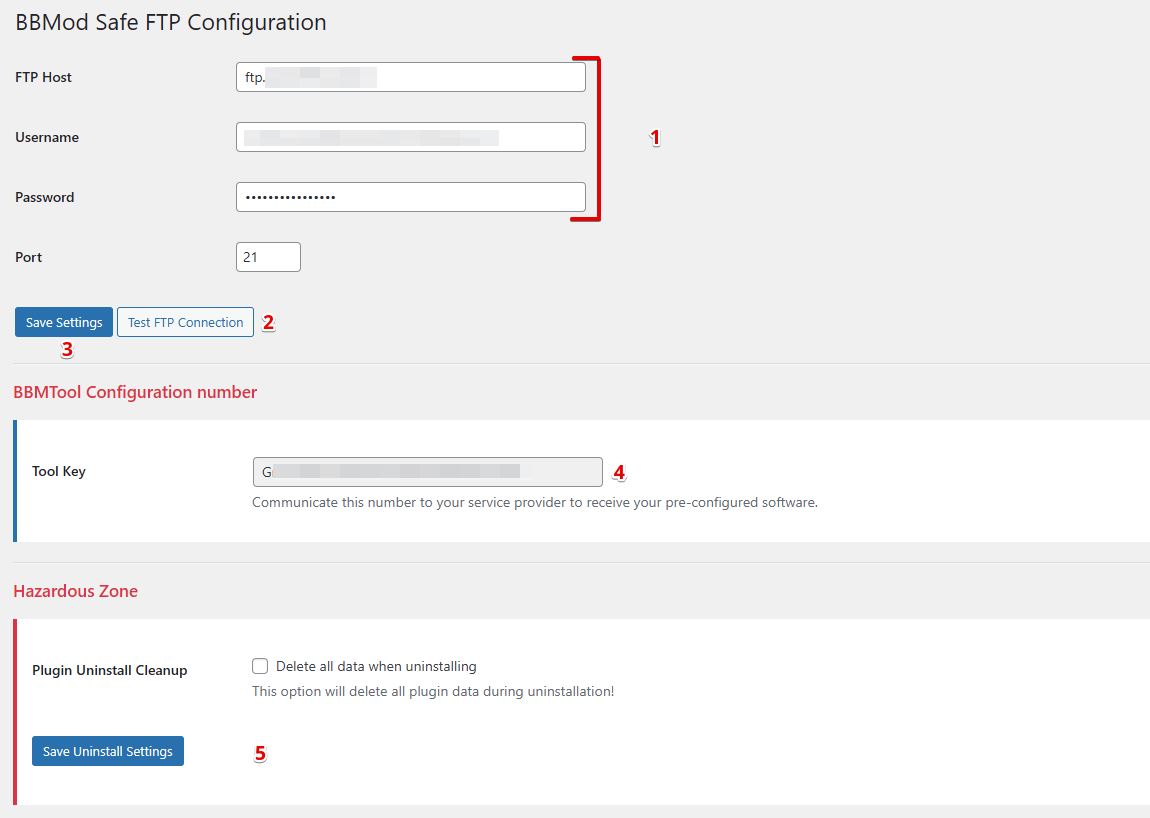
You will be asked for the Tool Key (4) to receive your personal BBM Tools program.
This license key cannot be changed in the settings.
Without this key, we will not be able to provide you with the program.
It is therefore essential to install the plugin and then provide us with this key.
At the bottom of the plugin, section 5 is reserved for uninstalling the plugin.
Check the box if you want all plugin data to be deleted when uninstalling the plugin.
This operation is irreversible and will delete all saved data (including your customers' licenses!).
To learn how to use the plugin, refer to this page dedicated to using the BBMod Safe plugin.
