
Content Creator Settings
You are a content creator (mods), you have access to special functions!
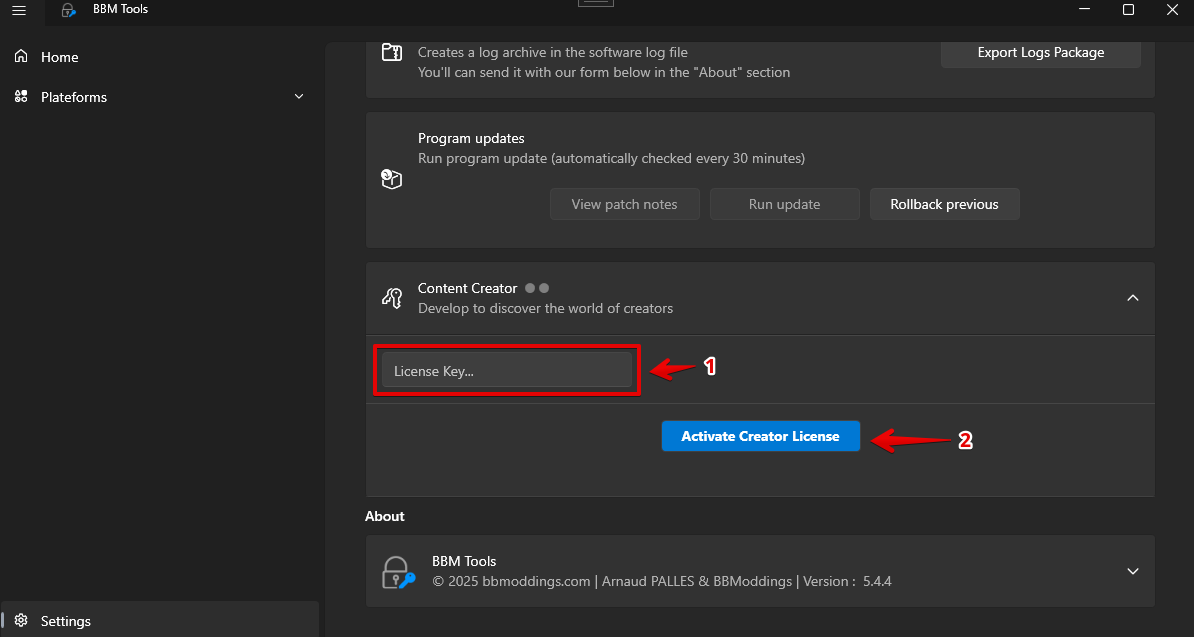
From the program settings page, you can activate your Content Creator license (see above).
You must have a valid Content Creator license.
Enter your license number (1), then activate your license by clicking the button (2).
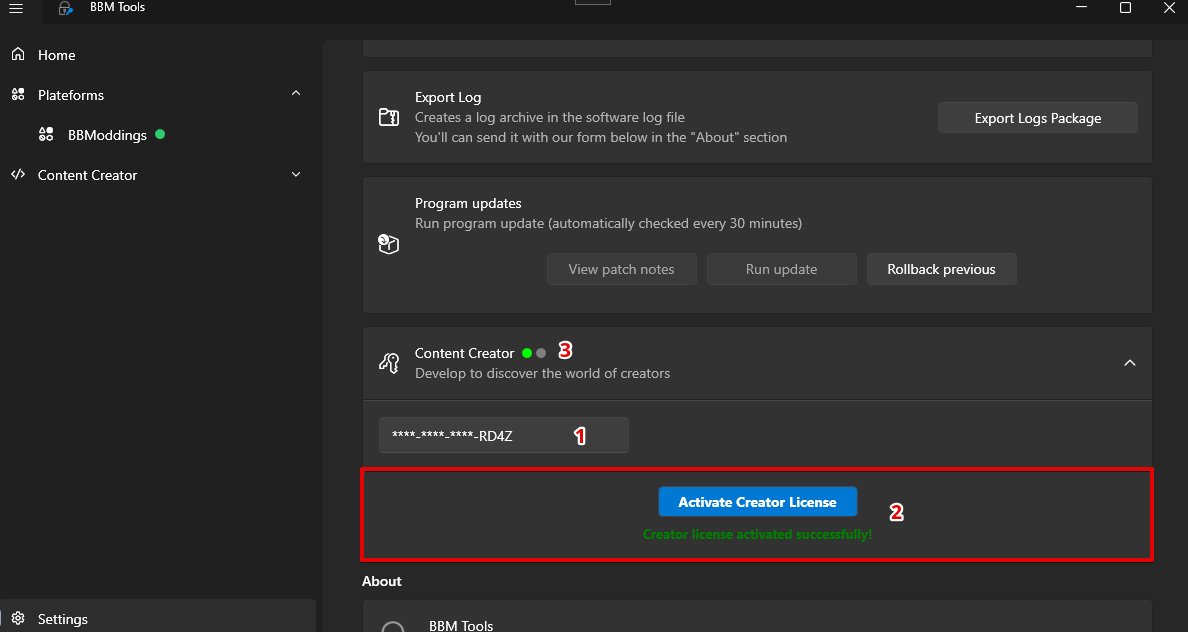
Once activated, your license is registered in the program.
Note: You can only have one license per program.
Using Content Creator Features
If your license is valid and activated in the program, you will see the two green dots next to the section title as below.

A new menu (1) will then be available, just below the “Platforms” menu.
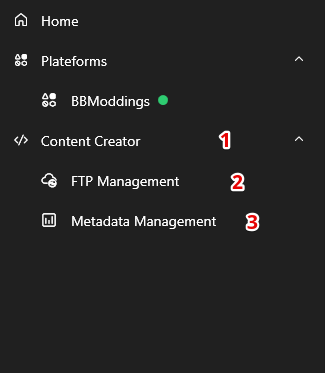
Two options are therefore available in this menu (2 and 3):
- FTP Management
- Metadata Management
The first item (2) allows you to access your FTP server (configured via the BBMod Safe plugin on your WooCommerce store).
The second item (3) allows you to edit the metadata of mods you have already uploaded to your FTP server. This option is very useful if you made an omission when uploading your mod or if you need to correct this metadata.
FTP Management
You can access your FTP server from this page.
You can manage your mods (those you make available to your customers on your WordPress/WooCommerce store) from here.
To learn how to configure the connection, refer to this page dedicated to configuring the BBMod Safe plugin.
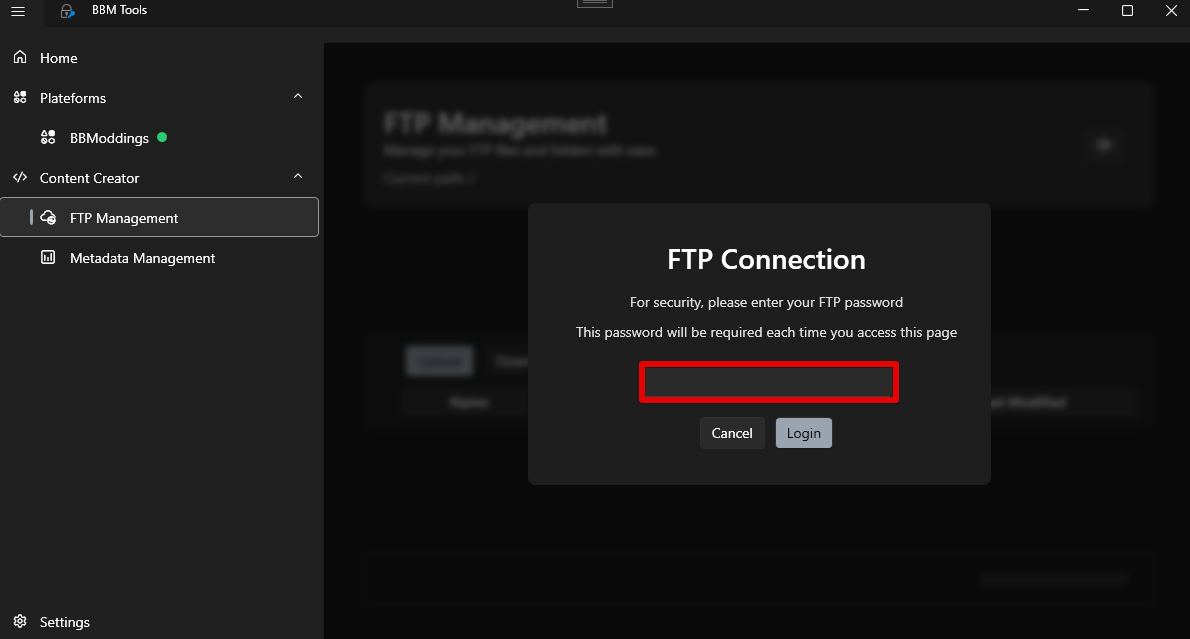
For security reasons, you will be asked for your FTP password each time you access this page.
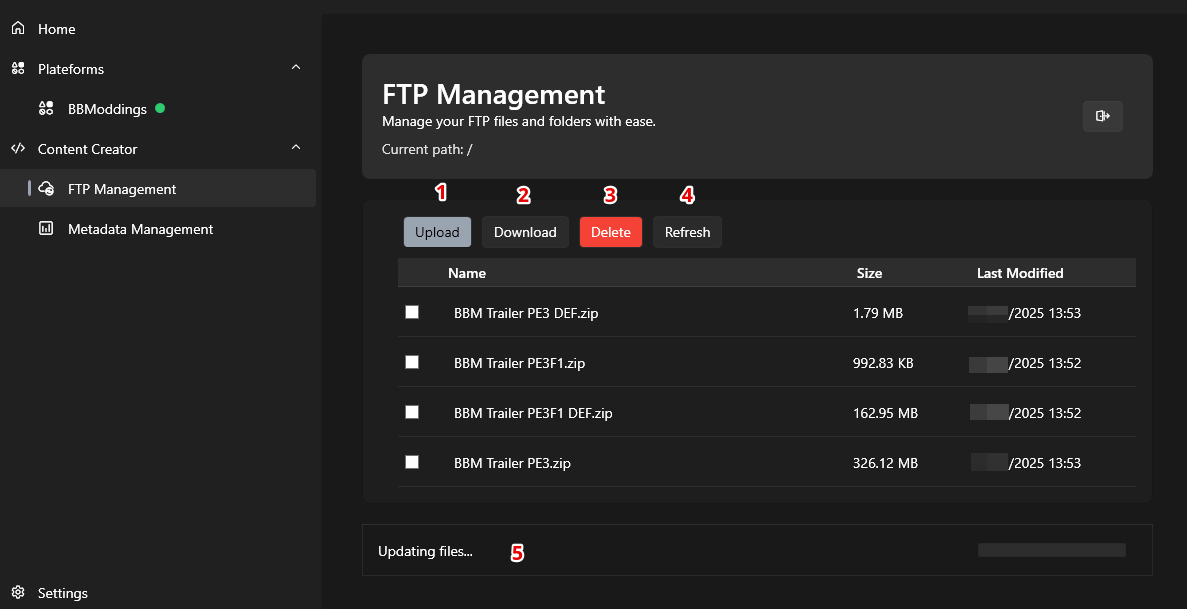
The interface is easy to use. You have management buttons (1, 2, 3, and 4) to manage the mods you wish to edit.
- Allows you to upload a mod to your server
- Allows you to download a mod from your server
- Remove a mod (or several) from your server
- Refresh your server list
An area (5) displays various information on current operations.
Uploading a mod
To upload a mod to your server, click the "Upload" button (1).
This will open the window shown below.
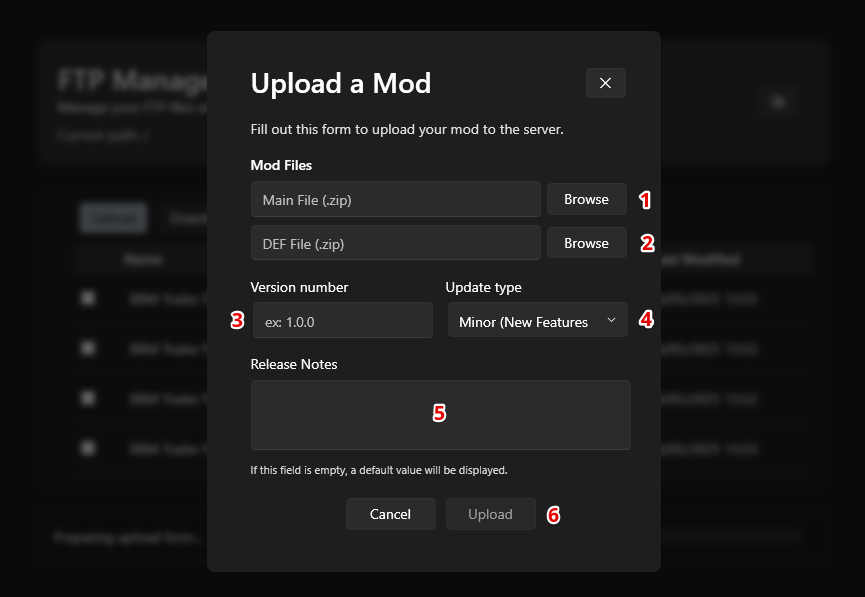
The interface is also streamlined to allow you to be productive.
Management functions (1 to 6) allow you to manage the mod you wish to send.
- Select the main mod file to send
- Select the DEF file to send
- Fill in the version (in X.X.X format)
- Choose the update type (Minor, Patch or Major, depending on the level of importance of this update). Choose the Minor option for a first upload
- You can enter a release note in this space. If you leave it blank, a default text will be applied.
- Once the information is filled in, the upload button is available to send your files to the FTP server
A confirmation message will appear at the end of the process.
Your mod is now available on your FTP server and ready to be used by the BBM Tools program.
Don't forget!
For the system to work, the names of the mods (Base and DEF archives) must be exactly the same (case-sensitive) on your store (product page).
Without this, the system will not be able to connect your product to the mod files on your server.
Metadata Management
The system uses an encrypted catalog for mod management.
You cannot read or modify metadata information from the file sent to the FTP server when a mod is uploaded.
This is why metadata editing is done exclusively from within the program.
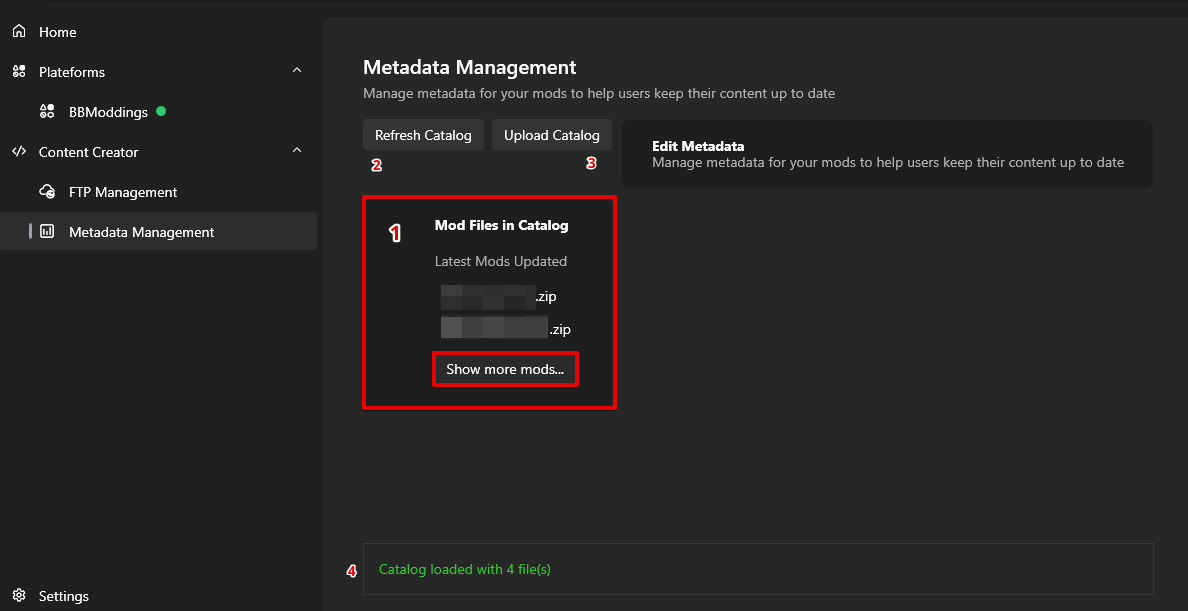
In area "1," the list of mods on your server displays the names of the mods' Base archives (main archive).
DEF archives are intentionally not displayed to avoid cluttering the interface.
The two buttons (2 and 3) allow you to refresh the catalog of mods present on your machine and to send (if you have edited one or more metadata) the catalog to the FTP server.
It is strongly recommended that when editing metadata, you first refresh the catalog (this will give you the latest local information), then upload the catalog to the FTP server.
Area "4" displays the catalog status and information received/sent.
Edit metadata
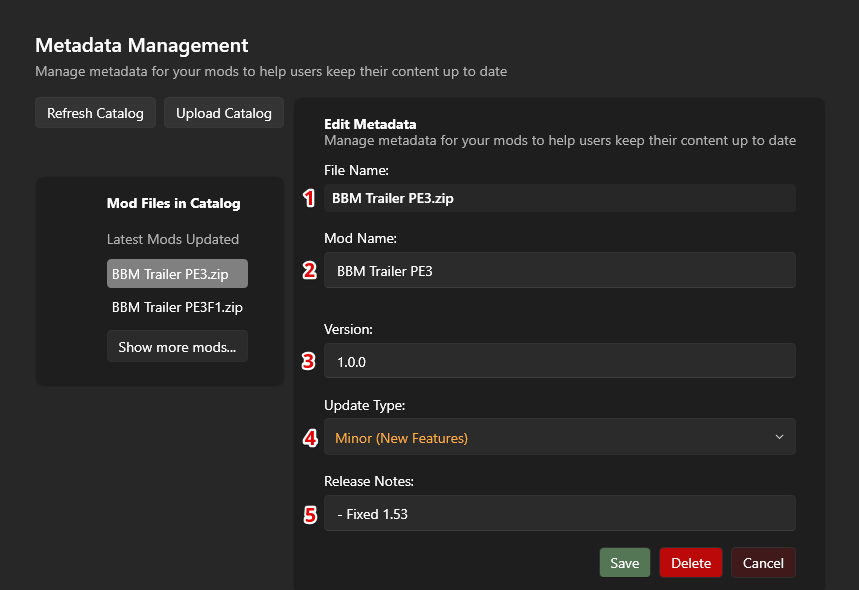
When you select a mod from the list on the left, this information appears on the right (1 to 5).
You'll find the same information in the editing interface as when uploading.
Simply modify the necessary information, then click "Save."
You also have the option to delete metadata. If you delete a mod from FTP Management or your FTP connection software, the catalog information must also be deleted.
You can do so using this option.
If you have many files, you can click the "Show more mods" button just below the mod list.
This will open the window shown below.
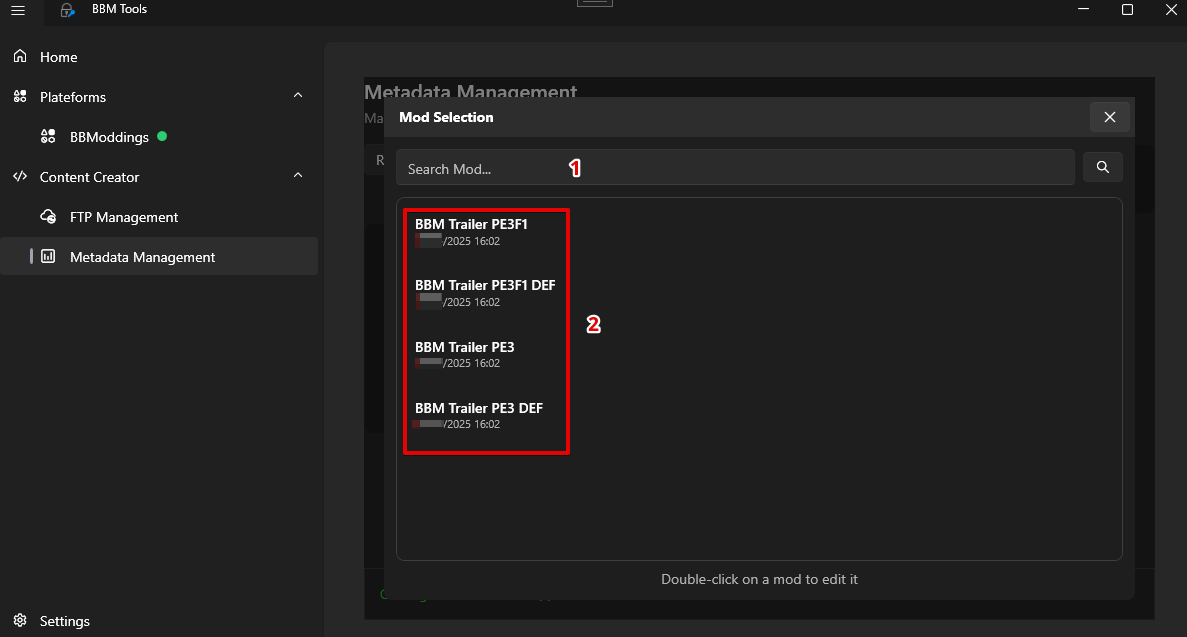
You can perform a dynamic search by name (1).
Then, double-click on the name of the mod you want to edit in the search results from the "2" area.
This will display the editing interface, as seen previously.
