
Mod Updates
1. An update available?
You must be logged in to your platform to receive mod updates.
Otherwise, you will receive an error message (see below).
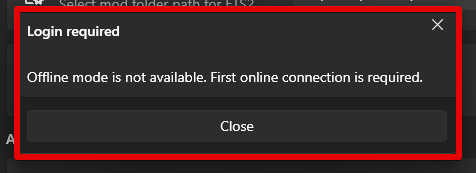
There are two ways to check and update your mods:
- Via the license interface (refer to the "Installing mods" page if necessary)
- Via program settings
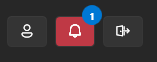
In the first case (1), at the top right of your license interface, you will be able to see the button with a bell change to red, with a number in blue in a small bubble.
Each mod's entry will display a slight variation if an update is available. The button text will change to "Update". Clicking the button will automatically take you to the updates page. (see below)

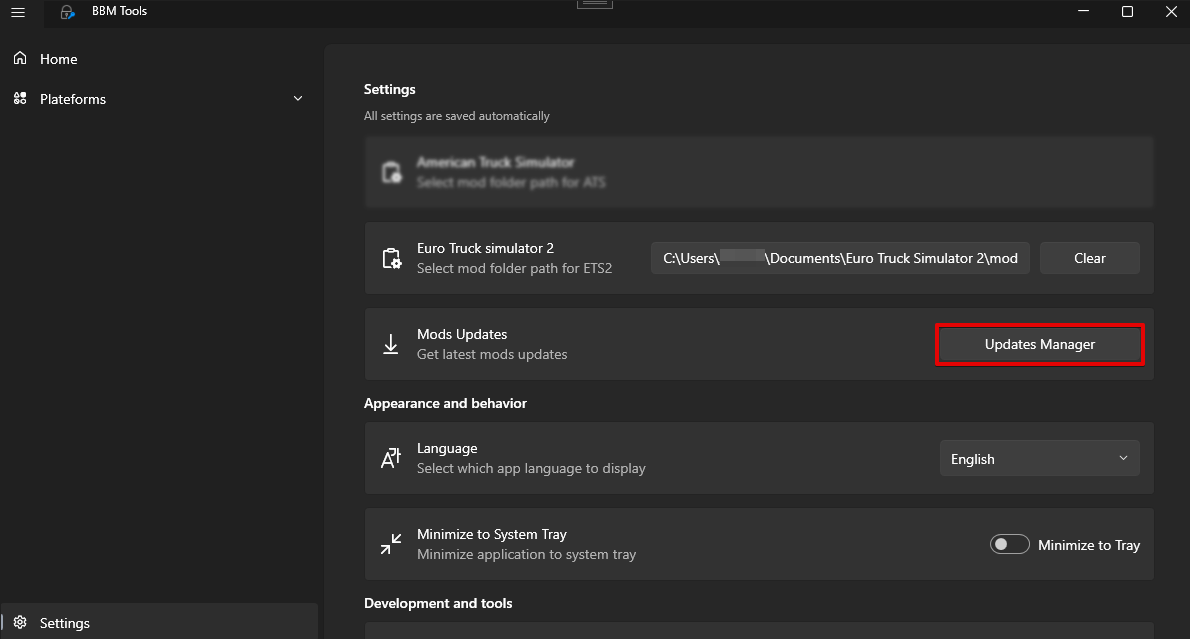
In the second case, you can check for updates from the settings page by clicking on the "Updates Manager" button.
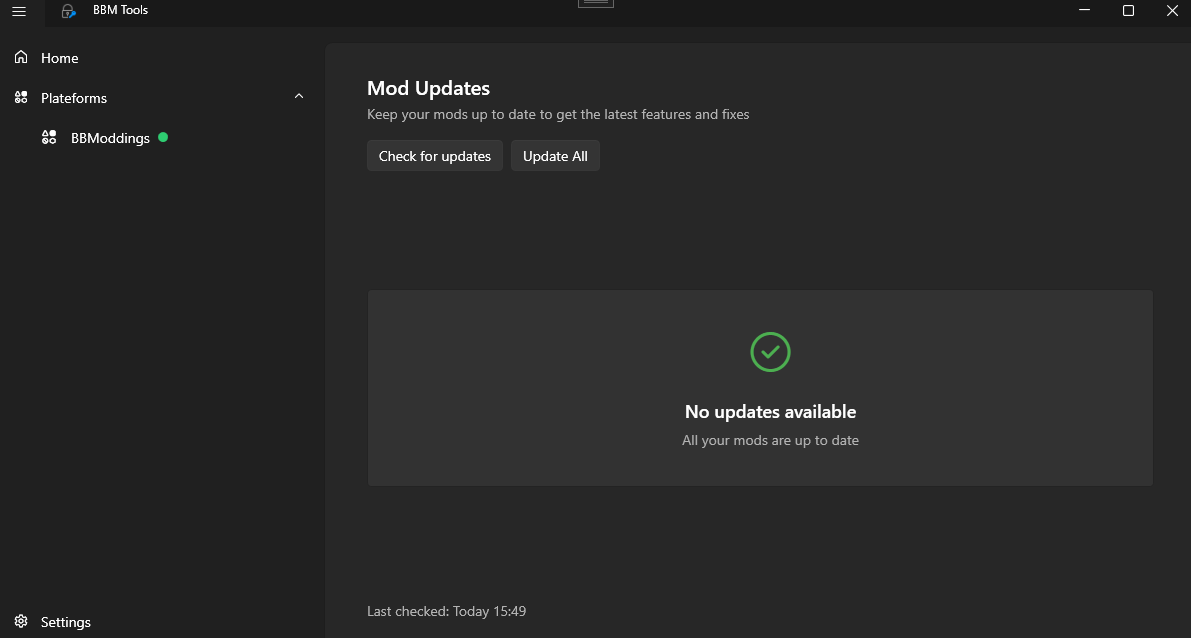
If no update is available, you will see this message:
2. Update a single mod
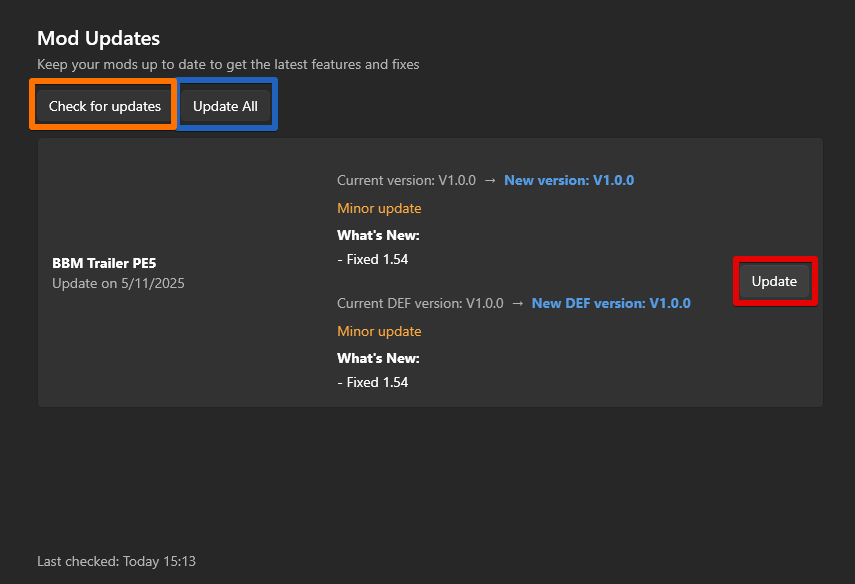
If an update is available, you will be able to update your mod by clicking the button on the right (red box).
You will also have access to the update information (release notes) from the mod's developer.
The display of release notes may vary depending on what the developer has provided.
You can also, if you wish, try to check for updates by clicking the "Check for updates" button (orange box).
Once you click on the button, a message appears reminding you of your action.
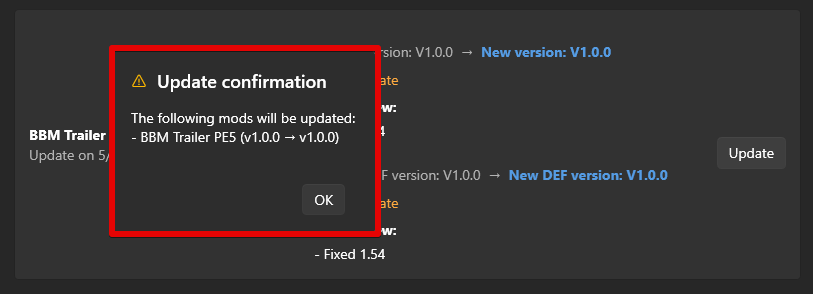
You will be asked to confirm the update process.
To do so, click "Start Update" as shown below.
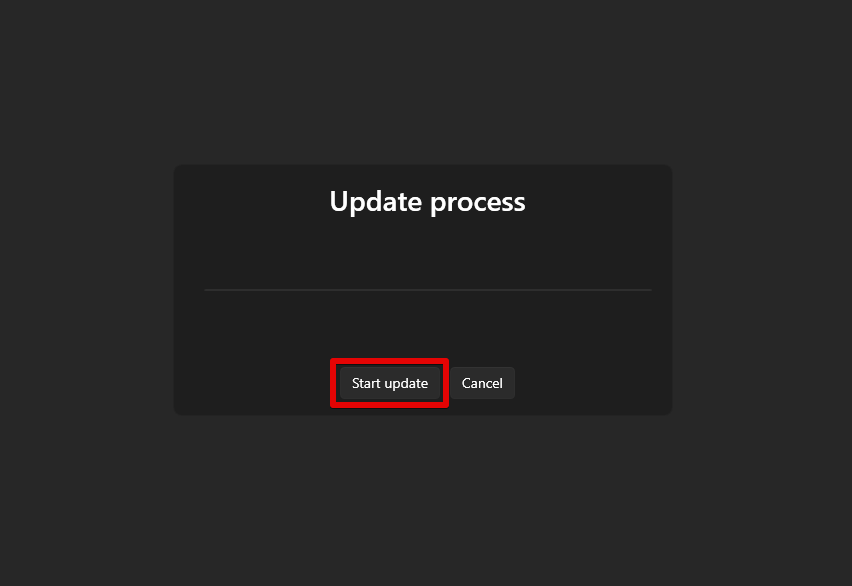
The update process then begins.
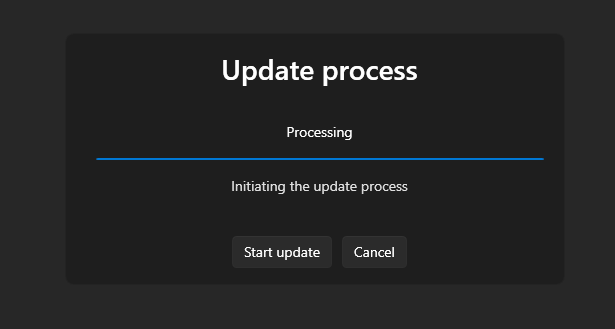
Wait until the process is complete!
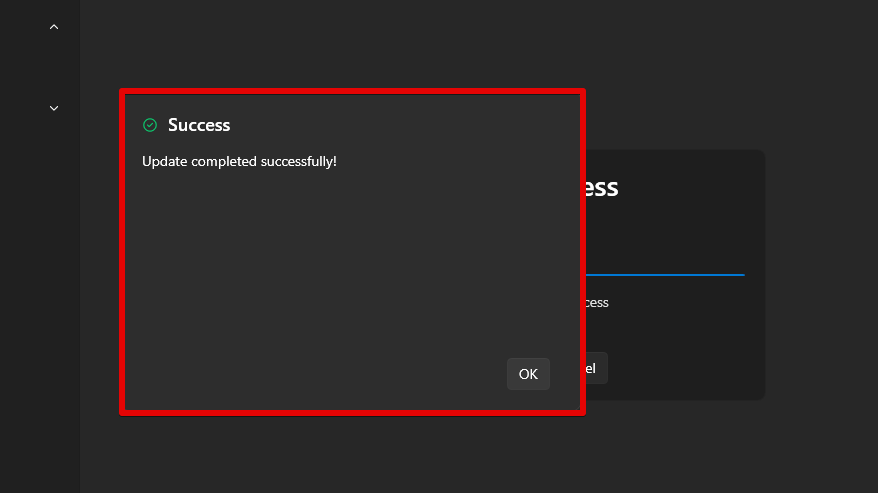
A confirmation (or error) message will appear as soon as the process is complete.
3. Update multiple mods in bulk
The bulk update process is identical to that of a single update.
The only difference is that all mods with an available update will be updated at once.
If you wish to perform this operation, click the "Update All" button (blue box).
The update is complete.
You can launch the game and use your updated mods.
Enjoy !
